Use a Kernel key
Connect your Kernel workspace to Clay, verify the connection and check your first record.
Connect your Kernel workspace to Clay, then use that connection in your Kernel actions. You can review the associated company records in the Kernel app.
Before you start
You need access to both your team's Kernel workspace and Clay workspace. A Salesforce connection is not required.
The Clay connection uses the Production environment.
If you use Clay without being a Kernel customer, use a Clay key and review the results in Clay.
1. Create your key in Kernel
Sign in to the Kernel app and select the workspace you want to connect.
Select Production.
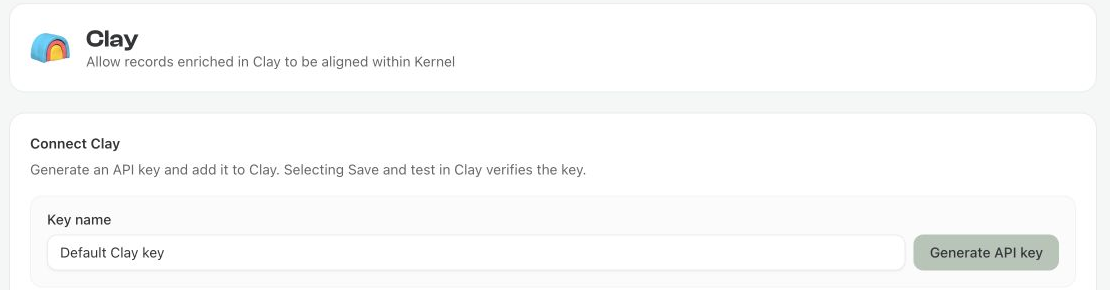
Open Connections → Clay.
Under Connect Clay, enter a Key name. The suggested name is Default Clay key.
Select Generate API key and copy the full key while it is displayed.
Keep setup open while you add the key to Clay.

Store the key in your Clay connection. Treat it as a password and keep it out of table columns, prompts and screenshots.
2. Add the key in Clay
Open Clay → Connections → Create.
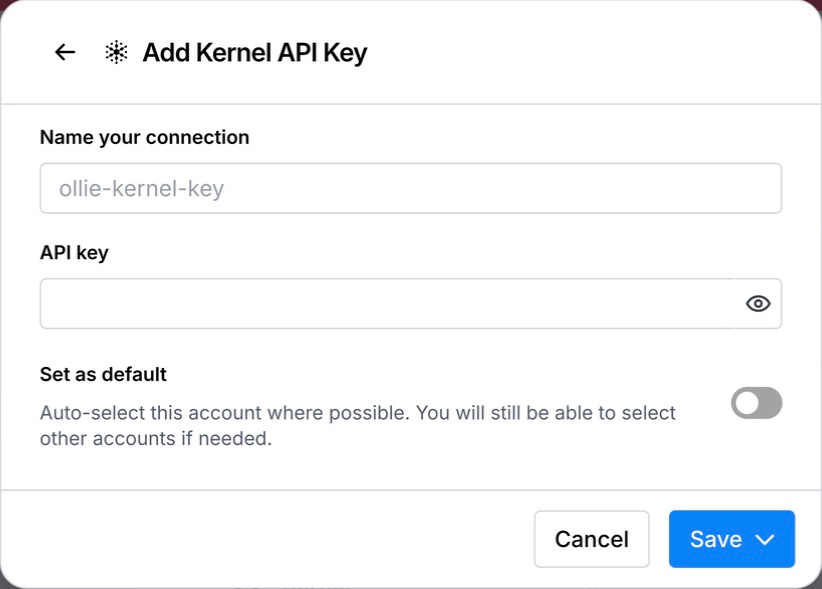
Choose Kernel and add a connection.
Give it a name your team will recognize and paste the API key. Open the Save menu and select Test account & save.
Select this saved connection in each Kernel action.

Check the connection selected for entity resolution, firmographics and hierarchy separately. See Clay's Connections guide for connection-management controls.
3. Verify the connection
Return to Kernel. The setup status changes from Waiting to verify your key… to Connection verified when Kernel confirms the connection.
If it is still waiting, check that you copied the complete key and saved it to the intended Clay connection. You can then run one row through Resolve company entity using that connection and check again.
4. Check your first record
Run one company through your saved connection, then check that the same record appears in Kernel.
In Clay, run Resolve company entity for one row using your saved Kernel connection.
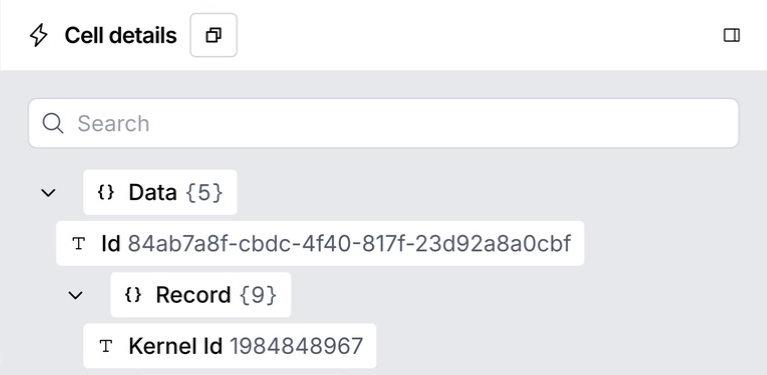
Wait for the action to finish. Open the completed cell, expand Data → Record and note the Kernel Id value. This is the returned KERN ID.
In Kernel, open Accounts and search for the company's resolved name or website.
Open the account and check that its KERN ID matches the result in Clay.

See Find your Clay records in Kernel for more help with searching, filtering and matching source record IDs.
Your record ID is optional. Mapping a stable source identifier makes reconciliation easier. It identifies your source record; KERN ID identifies the resolved company.
Import accounts from earlier runs
After you connect, Import Clay accounts shows how many earlier Kernel records from your Clay workspace can be brought into your Kernel workspace.
Review the count and select Import accounts.
Follow the progress shown on the connection page.
Select View accounts when the import finishes.
An account is skipped if your Kernel workspace already has an account with the same external ID. If the import stops before finishing, select Import accounts again to bring in the remaining records. Accounts already imported stay in your workspace.
Keep source record IDs and KERN IDs in your Clay table so you can compare the imported records with their original results.
When moving from the Clay-managed Kernel account, select your saved Kernel connection in each action and check one new result before running a larger batch.
Disconnect or change the connection
Choose Disconnect on the Clay connection in Kernel. This revokes the API key associated with that connection. Actions in Clay that use the revoked key will fail until you configure a valid connection.
Contact your Kernel team if you need to change which Kernel workspace is associated with the Clay workspace.
Next: review your accounts
Find your Clay records in Kernel explains how to search, filter, compare IDs and inspect the available account data.
Last updated