> For the complete documentation index, see [llms.txt](https://docs.kernel.ai/llms.txt). Markdown versions of documentation pages are available by appending `.md` to page URLs; this page is available as [Markdown](https://docs.kernel.ai/integrations/clay/use-a-clay-key.md).
# Use a Clay key
Run Kernel actions in Clay using the Clay-managed Kernel account.
Select **Clay-managed Kernel account** to run Kernel actions in Clay. You do not need your own Kernel API key. Review the results in your Clay table.
## 1. Resolve your first company
1. Open a company table in [Clay](https://app.clay.com/).
2. Select **Add enrichment** and choose **Kernel → Resolve company entity**.
3. Select **Clay-managed Kernel account**.
4. Map the identifying information you have, such as a company name, website or company LinkedIn URL. Add country and address where available to help distinguish similarly named companies.
5. Optionally map a stable source identifier into **Your record ID**.
6. Run one row and review the completed result before running more rows.
Select Clay-managed Kernel account in the action's Account section.
Keep the original company information and source identifier in their own columns. See Clay's [enrichments guide](https://university.clay.com/docs/enrichments) for the controls used to configure and run an enrichment.
### Using a LinkedIn company URL
Map an existing LinkedIn company URL into **Company professional URL** to include it as an identifying input.
**Match to professional profile** requests an additional professional-profile match for the resolved entity. It is separate from supplying a company URL as an input to entity resolution.
## 2. Check the result
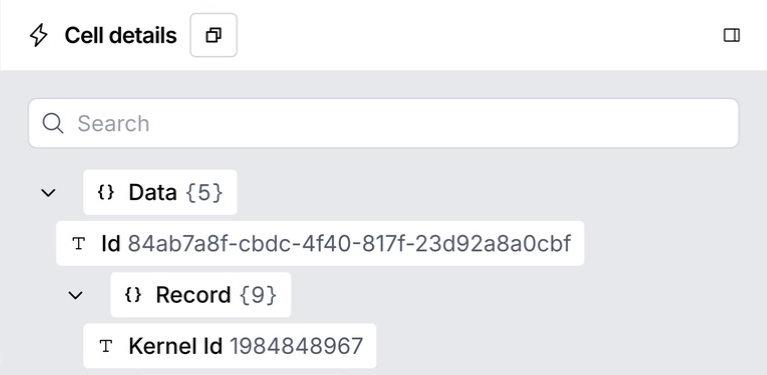
Open the completed action cell and expand **Data → Record**. The **Kernel Id** field is the company's KERN ID.
Find the returned KERN ID under Data → Record.
Extract the fields you need into table columns. Start with:
* **KERN ID**
* Resolved company name, website and relevant country
* Identity confidence and reasoning
Check that Kernel identified the intended company and entity level. A subsidiary and its parent can have different KERN IDs. Two source records that refer to the same entity can share one KERN ID.
Give extracted columns clear names, such as **Identity reasoning** or **Parent KERN ID**, so similarly named output fields remain easy to distinguish.
## 3. Add firmographics or hierarchy
Add the actions your workflow needs and map the resolved **KERN ID** into their required ID input. You can also start from an existing verified KERN ID.
| Action | What to review |
| -------------------------------- | ------------------------------------------------------------------------------------------ |
| **Enrich company firmographics** | Operational status, location, headcount, revenue and currency. |
| **Resolve company hierarchy** | Immediate parent, top parent, top operating parent and regional-subsidiary classification. |
For size fields, distinguish values for the entity itself from consolidated values that include its subsidiaries. For revenue, keep the amount with its currency. See [firmographics](/data/firmographics.md) for definitions.
Keep parent KERN IDs separate from the company's own KERN ID. Regional-subsidiary fields describe whether the queried entity represents a regional operation and its scope. See [parent relationships](/data/hierarchies/parent-relationships.md).
## 4. Use the results in your workflow
Use Clay's run conditions to wait for the required inputs. Firmographic and hierarchy actions need a KERN ID; a different provider may need a website or company name.
Once you have reviewed the result, you can:
* Pass the resolved website into another enrichment provider.
* Qualify companies by location, status or size before finding contacts.
* Give Claygent the resolved name, website, country and relevant parent context for further research.
Keep KERN ID alongside the results for traceability. For research, ask for source URLs and keep facts about the parent separate from facts about the resolved entity.
If a result is empty or an action fails, check its status and reasoning before rerunning it. See [Understand empty results](/integrations/clay.md#understand-empty-results).
## Connect your Kernel workspace
If you use both Kernel and Clay, [use a Kernel key](/integrations/clay/connect-your-kernel-account.md) to connect your workspace and review associated records in the Kernel app. That guide also explains how to import accounts from earlier Kernel runs.
Kernel app access is available to Kernel customers. To learn more, [book a demo](https://www.kernel.ai/book-a-demo).