Send Kernel Feedback
Turn on the Send Kernel Feedback button and add it to your Account and Kernel Account pages so reps can send data feedback to Kernel from Salesforce.
Send Kernel Feedback is the Salesforce feedback form for Kernel. It lets a rep flag a data issue - a wrong match, an off headcount, a missing parent - directly from an Account or Kernel Account record, and sends it to the Kernel data team as a tracked ticket. It replaces the older method of typing feedback into a Salesforce field.
This page covers how to switch the button on and show it on your records. For what happens after an issue is raised and where to track outcomes, see the Feedback loop concept page.
Requires Kernel Salesforce package version 3.11.4 or later. Version 3.11.4 includes the Send Kernel Feedback label and lets reps submit from a standard Account without first creating a Kernel Account. Check your installed version under Setup → Installed Packages and upgrade the package if needed.
Prerequisites
The Kernel SF Connected App package is installed and authorized, on version 3.11.4 or later. ("Kernel SF Connected App" is the package name as it appears in Salesforce.) See the Package installation guide.
The package was installed or upgraded using Install for All Users. This is required for end users to access the packaged feedback form.
Feedback ticketing is enabled for your Kernel environment. Kernel configures this - if the button returns an error saying feedback is not enabled, contact your Kernel team.
Every user who will submit feedback has Kernel Readonly PermissionSet (
Kernel_Readonly_PermissionSet). This permission set includes the Kernel: Submit Feedback permission (Kernel_Submit_Feedback) and access to the feedback form.
Give users access
Both the installation audience and the user permission set are required.
Confirm the package was installed using Install for All Users. If it was installed for administrators only, open the current package link in the Kernel app and complete the upgrade flow using Install for All Users.
In Salesforce Setup, go to Permission Sets.
Open Kernel Readonly PermissionSet.
Select Manage Assignments, then Add Assignments.
Select every user who should access the feedback form and click Assign.
You can now add the action to the relevant Account pages.
How it works
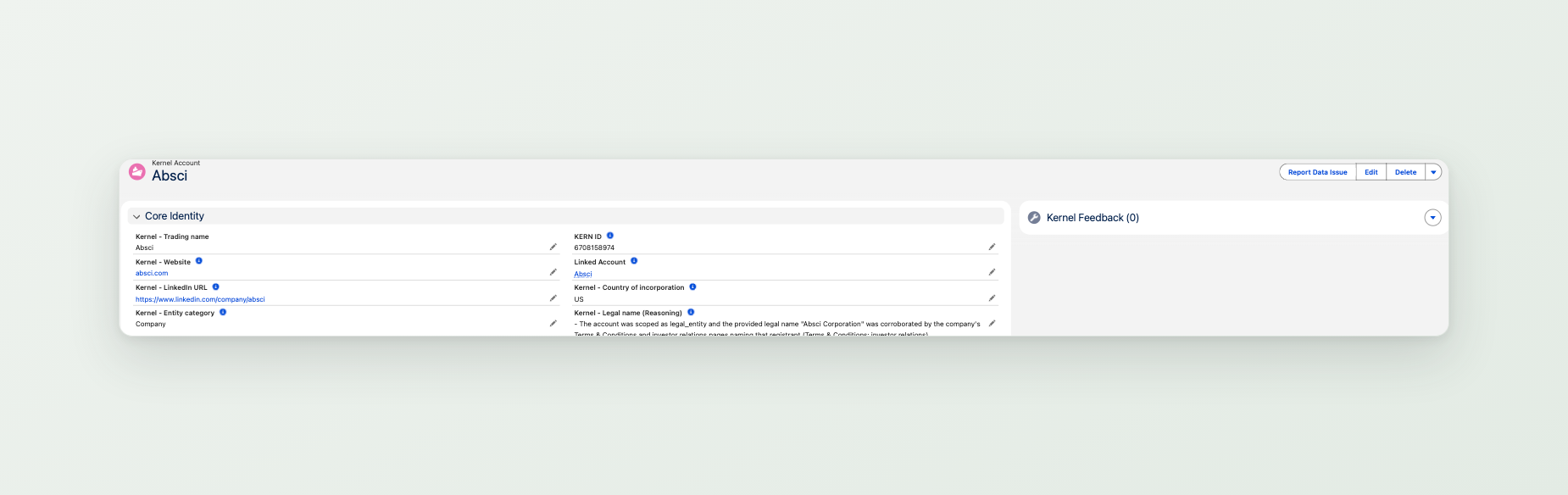
Send Kernel Feedback is a Lightning quick action, so it appears as a button in the action row at the top of a record. It is available on two objects:
the standard Account, and
the Kernel Account (
Kernel_Account__c) that stores Kernel's resolved data for that account.
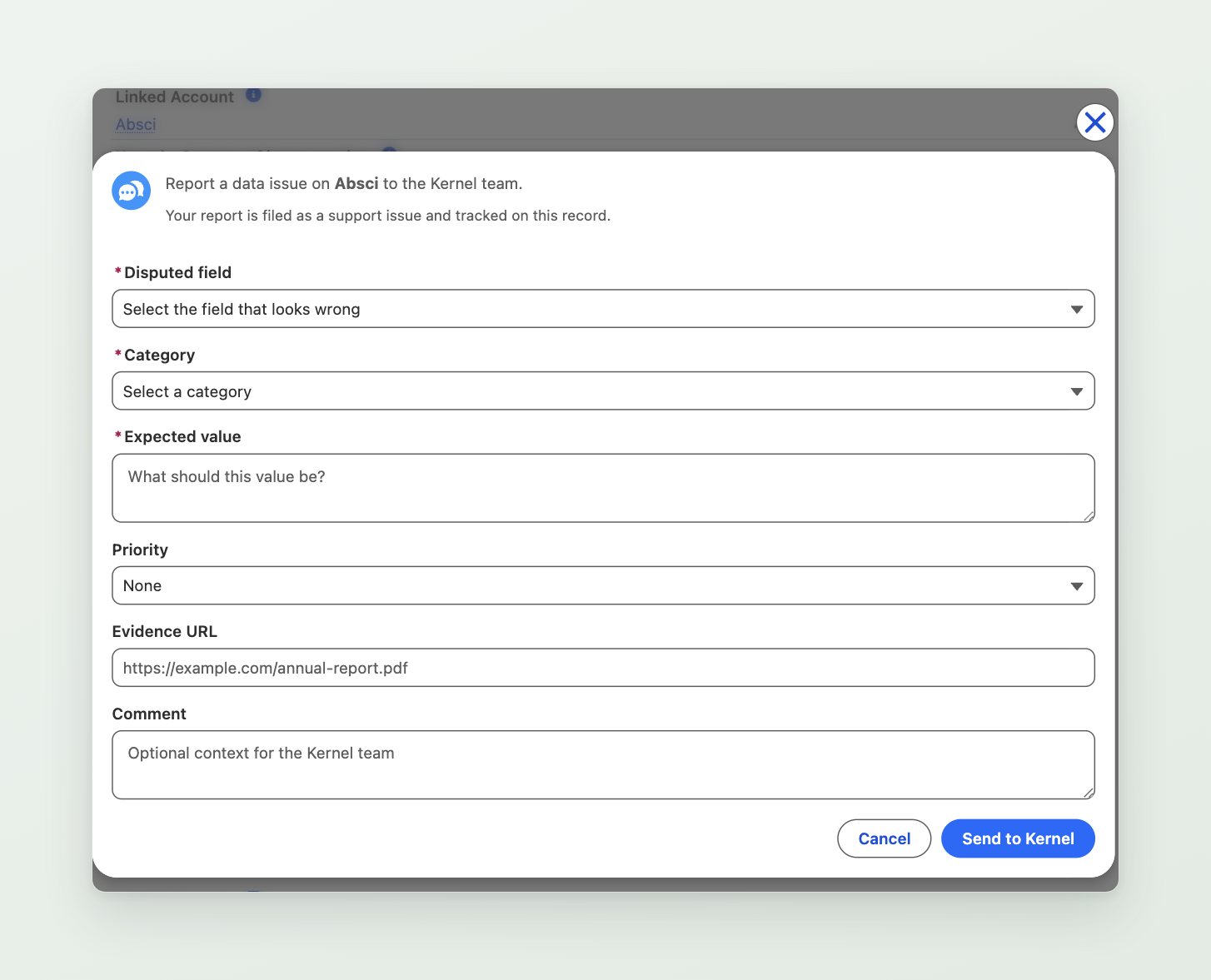
When a rep clicks it, a short form opens. The rep chooses the field they disagree with and describes the correct value; Kernel captures the current value automatically. On submit, Kernel creates a support ticket for the data team and stores a tracking record in Salesforce. If the Account has a linked Kernel Account, the tracking record is associated with both records.
A standard Account does not need a linked Kernel Account to submit feedback in package version 3.11.4 and later. A Kernel Account does need to be linked to its Salesforce Account so Kernel can identify the CRM record.
Show the button on the Kernel Account
The package ships a ready-made Kernel Account record page that already includes the button and a feedback history list.
Go to Setup → Object Manager → Kernel Account → Lightning Record Pages.
Open Kernel Account Record Page and click Activation.
Set it as the org default (or assign it by app or profile as you prefer), then Save.
This page shows the Send Kernel Feedback button in the highlights panel and a Kernel Feedback related list, so your team can see every issue reported for that account in one place.

Show the button on the standard Account
To let reps raise feedback from the standard Account record, add the action to the Account page layout.
Go to Setup → Object Manager → Account → Page Layouts.
Open the layout your reps use and find the Salesforce Mobile and Lightning Experience Actions section.
If the section still shows the default actions, click override the predefined actions.
Drag Send Kernel Feedback into the action list where you want it to appear.
Save.
The button now appears in the action row at the top of Account records for users assigned Kernel Readonly PermissionSet.
Reps can submit from a standard Account whether or not your organisation uses the Kernel Account custom object.
Using the form
When a rep clicks Send Kernel Feedback, the form asks for:
Disputed field - the piece of Kernel data that looks wrong (for example, Kernel Headcount).
Current value - filled in automatically from the record, so the rep does not type it.
Category - the area the issue falls under, such as identity, headcount, revenue, or locations.
Expected value - what the rep believes the value should be.
Priority - optional triage guidance for the Kernel team. Leave it as None for routine corrections. Use Low or Medium for work that is not blocking a live process, High for an important issue affecting current work, and Urgent only when the issue is blocking an active business process.
Evidence URL - an optional link that backs up the claim.
Comment - any extra context.
The rep clicks Send to Kernel to submit. The feedback is sent to Kernel and stored as a Kernel Feedback record in Salesforce. When the Account has a linked Kernel Account, it also appears in the Kernel Feedback related list on that record.

What makes useful feedback
The more specific the submission, the faster the data team can act on it. A good report names the exact field, states the value you expected, and links to something we can verify against.
Wrong headcount. Disputed field: Kernel Headcount. Expected value: "~1,200". Evidence URL: the company's LinkedIn or careers page. Comment: "Their careers page lists 1,200+ staff; Kernel shows 300."
Wrong company matched. Category: identity. Expected value: the correct legal name and website. Evidence URL: the correct company homepage. Comment: "This resolved to the US parent, but our account is the UK trading entity."
Missing or wrong parent. Category: hierarchy. Expected value: the parent company you expect to see. Evidence URL: a news article or the parent's site confirming ownership. Comment: "Acquired by Acme in 2025 - should roll up to Acme Group."
A short note with a link beats a long description with none.
Tracking outcomes
Submitted issues are always available on the Data feedback loop page in the Kernel app at app.kernel.ai/feedback, where you can read the resolution and reasoning once the data team has responded.
In Salesforce, each submission is stored as a Kernel Feedback record against the standard Account. If your organisation uses linked Kernel Account records, the same submission also appears in the Kernel Feedback related list on the Kernel Account.
The tracking record captures the disputed field, the expected value, the category, and its status, with a link to track the issue in the Kernel app.

See Feedback loop for the full picture.
Last updated