> For the complete documentation index, see [llms.txt](https://docs.kernel.ai/llms.txt). Markdown versions of documentation pages are available by appending `.md` to page URLs; this page is available as [Markdown](https://docs.kernel.ai/integrations/salesforce-integration/search-and-create-accounts.md).
# Search and create accounts
Search Kernel's company database from inside Salesforce and create matched companies as Accounts, without leaving your CRM.
Search Accounts lets a rep look up any company in Kernel's database from inside Salesforce and turn the match into an Account in a couple of clicks. It is the fastest way to add a net-new company to Salesforce with clean company details already filled in, and it flags companies you already have so you do not create duplicates.
It is a full-page tab, not a record action, so reps use it whenever they need to find or add a company, not only when they are on an existing record.
## Where to find it
1. Open the **App Launcher** (the nine-dot grid, top left).
2. Select the **Kernel** app.
3. Open the **Kernel Search Accounts** tab.
The tab is available to every user once the package is installed for all users. See [Giving your team access](#giving-your-team-access) below.
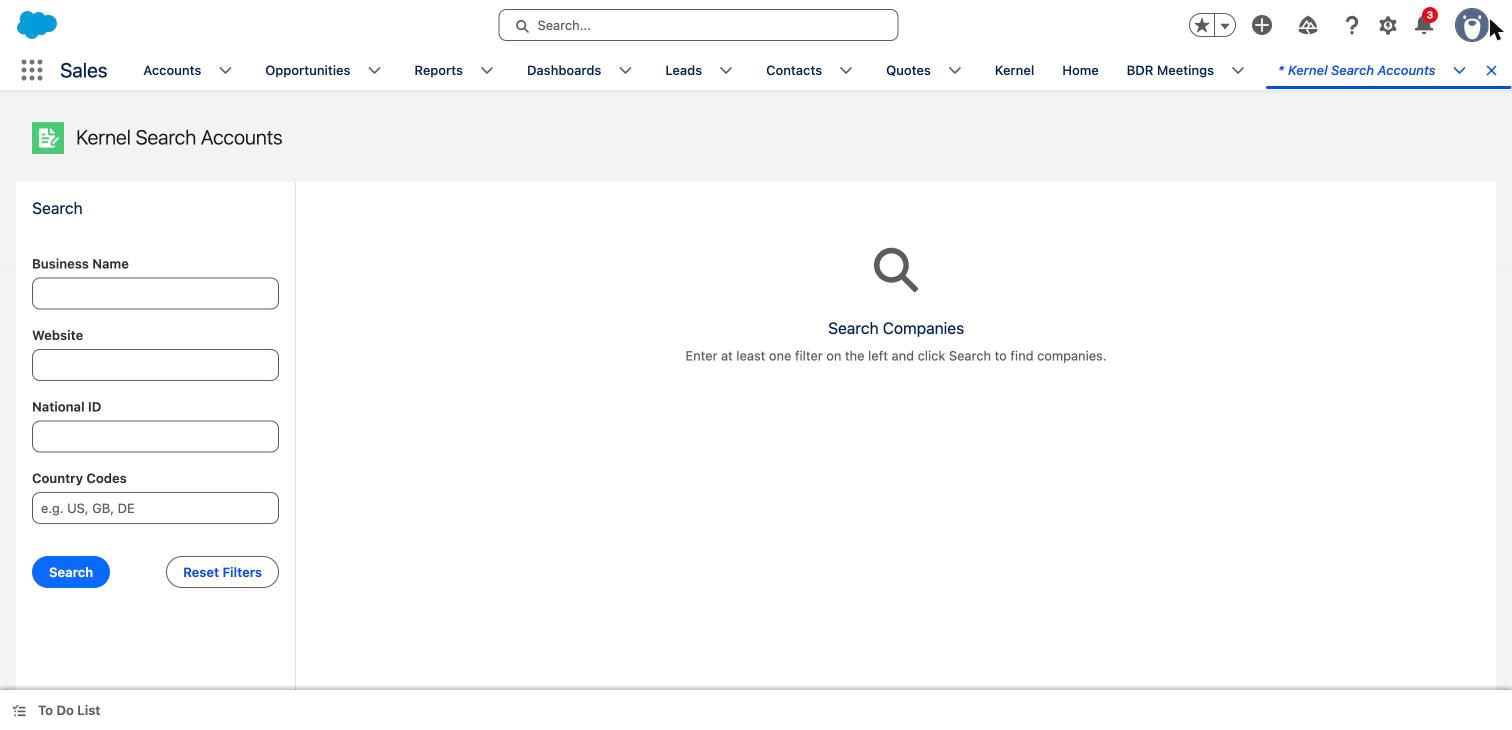
The Kernel Search Accounts tab
## Running a search
The search panel on the left has four filters. You can use any one of them on its own or combine them to narrow the results. At least one filter is required.
* **Business Name**: the company name to look for.
* **Website**: the company's domain or website.
* **National ID**: a company registration number (for example a Companies House number or an EIN).
* **Country Codes**: one or more two-letter country codes to restrict results by country, for example `US, GB, DE`.
Enter your criteria and click **Search**. **Reset Filters** clears the form and results so you can start again.
Kernel searches its global company database and ranks the matches by how closely they fit your criteria, so a search still finds the right company even when the name or website is entered slightly differently.
## Reading the results
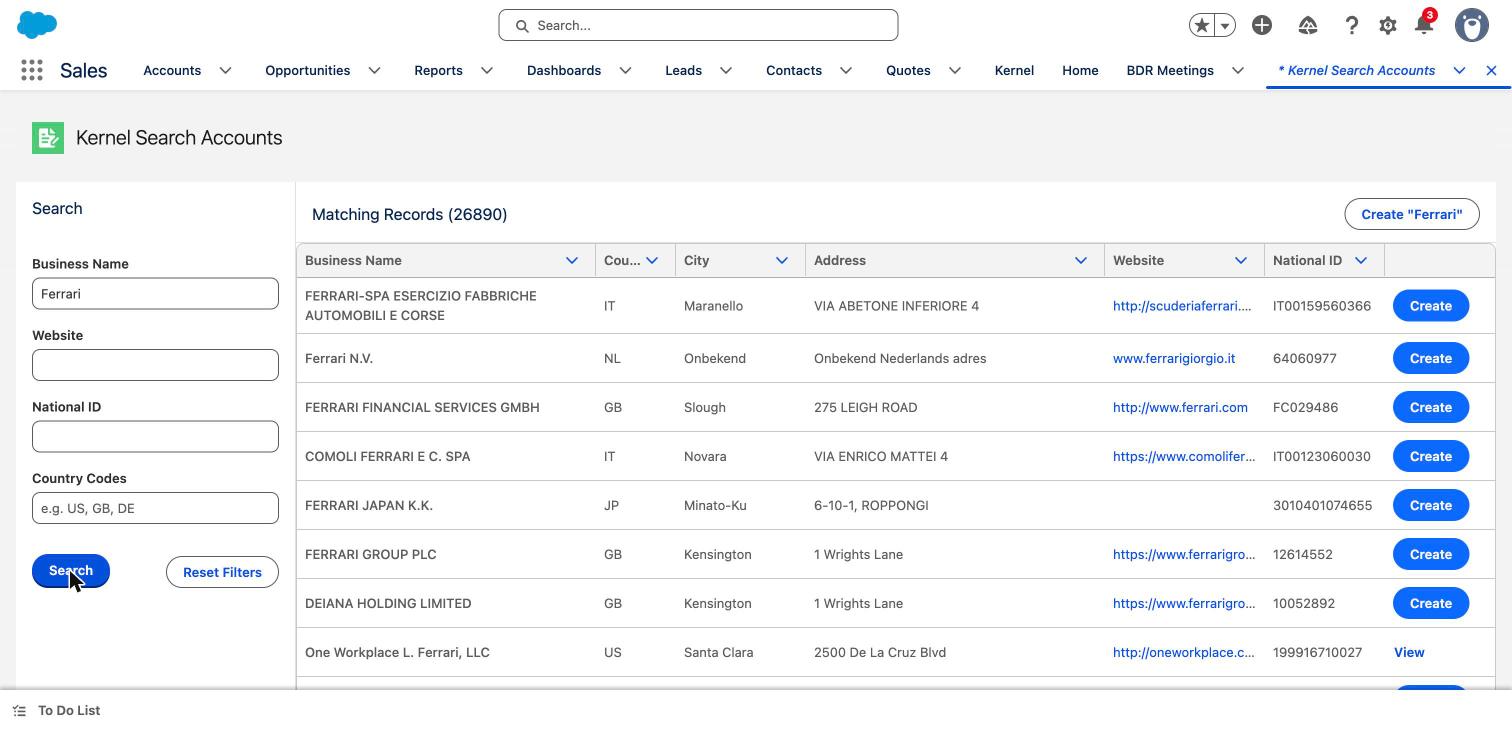
Matches appear in a table on the right, with the total number of matches shown above it. Each row shows the company's **Business Name**, **Country**, **City**, **Address**, **Website**, and **National ID**.
Search results, with Create on new companies and View on ones already in your Salesforce
Results are returned 100 at a time. When there are more matches, a **Load more** button appears at the bottom with the number of remaining results.
Every row has a button on the right whose label tells you the company's status in your Salesforce:
* **Create**: this company is not yet in your Salesforce. Click to create it as a new Account.
* **View**: this company is already an Account in your Salesforce. Click to open the existing record in a new browser tab, so you keep your search results open.
* **Exists**: this company is already in your Salesforce but is not linked to a single record Kernel can open directly. It is shown so you know not to create a duplicate.
Kernel decides whether a company is already one of your accounts by checking it against the companies Kernel has already linked to your Salesforce. This means reps see a clear duplicate warning before they create anything.
## Creating an account
When you click **Create** on a result, Salesforce opens the standard **New Account** page with the company's details already filled in:
* Business name
* Website
* Billing street, city, postal code, and country
You review the details, add anything else your team captures, and save as you would with any Account. Because it uses the standard New Account page, creation follows your normal Salesforce page layouts, validation rules, and permissions.
A couple of things to know:
* **National ID is not carried over.** Salesforce Accounts have no standard field for a registration number, so it is left off the new record.
* **None of the results fit?** Use the **Create "\"** button above the results (or on the empty-results screen) to create an Account from exactly what you typed, rather than from one of the matches. Kernel fills in the business name, website, and country where it can.
{% hint style="info" %}
Search results carry a company's identity and address. Once the Account is created, if you have an inbound process set up with Kernel, its data is automatically enriched, cleaned, and pushed back to both the new Account and the Kernel Platform.
{% endhint %}
## Giving your team access
Search Accounts is built for reps, not only administrators. Making it available to your whole team happens at install time and comes down to two things:
* **Install the latest version of the Kernel package.** Search Accounts is only present in recent versions, so an older installation will not show the tab. Use the current install link from Kernel to install or upgrade.
* **Install the package for all users, not just administrators.** During installation, choose **Install for All Users** rather than **Install for Admins Only**. This gives every rep the Kernel app and the **Kernel Search Accounts** tab. If the package is installed for admins only, reps will not see it.
See the [Package installation guide](/integrations/salesforce-integration/package-installation-guide.md) for the full install walkthrough.
A note on creating records: creating an Account from a result uses the standard New Account page, so it follows each user's own Salesforce permission to create Accounts, which most sales users already have. If a user can search but cannot save a new Account, check that their profile allows Account creation.
## Why it matters
* Reps add clean, correctly identified companies to Salesforce in seconds, without copying data between tabs.
* Duplicate matches are flagged before a record is created, so the same company does not get added twice.
* The feature is safe to roll out to the whole team: searching is read-only, and creating a record still respects each user's existing Salesforce permissions.
* Searching is free to run. It does not consume enrichment credits.