> For the complete documentation index, see [llms.txt](https://docs.kernel.ai/llms.txt). Markdown versions of documentation pages are available by appending `.md` to page URLs; this page is available as [Markdown](https://docs.kernel.ai/platform/actioning/merge.md).
# Merge accounts
Choose which duplicate accounts to merge and which values to keep
A merge combines duplicate Salesforce accounts into one primary account. The primary keeps its Salesforce ID. Salesforce removes the duplicates as part of the merge.
[Open Merge accounts in Kernel](https://app.kernel.ai/cleaning/merge?view=cards)
## Choose which accounts can merge
Open **Rules > Duplicates** to choose how Kernel handles regional, location, trading-name, and website duplicates. The same tab has a separate setting for the Absorbed special case. Add deliberate duplicate rules for records you want to keep separate, such as separate billing accounts for one company.
Open **Rules > Merges** to choose whether safeguarded duplicates can be merged away. With **Allow merging safeguarded accounts** off, those duplicates stay separate. Turning it on allows them to be merged into the primary.
A safeguarded account can still be the surviving primary and receive field updates under your survivorship rules. The safeguard protects a duplicate from removal; it does not freeze the primary's values.
[Read the cleaning rules](/platform/data-setup/cleaning-rules.md)
A duplicate group contains records Kernel identified as related duplicates. A merge group contains the records eligible to merge after your rules are applied.
## Duplicate types
| Type | When Kernel uses it | Example |
| -------- | -------------------------------------------------------------------------------------------------------------------------------------------------------------------------------- | ------------------------------------------------------------------------------------------------ |
| Primary | The record Kernel recommends keeping. Other accounts in the duplicate group merge into this record. | If three CRM records represent Acme, the Primary record is the one that keeps its CRM ID. |
| Exact | Accounts share the same Kernel ID, or their legal name, legal country, record name, and trading country all match. Kernel can also use aligned URL, name, and legal name values. | Two CRM records both resolve to the same Acme entity and Kernel ID. |
| Location | A physical establishment and its operating company represent the same legal entity and share the same root domain. One account must be classified as an Establishment. | Marriott London Bridge and Marriott International. |
| Regional | Accounts share the same legal name but represent trading activity in different countries. | Acme France represents the French trading presence of Acme GmbH, which is registered in Germany. |
| Trading | A trading identity and its legal entity share the same legal name within one country. The legal entity is the Primary record. | Dove as the trading identity and Unilever as the legal entity. |
| Website | Accounts share the same URL and name, but their legal names do not need to match. This type is optional and off by default. | Two Acme accounts both use `acme.com` and the name `Acme`. |
## Filter merge groups
Open **Filter → Filter by fields** to narrow the merge groups and duplicate accounts you want to review. These filters affect the current selection. [Survivorship configuration](#how-field-values-are-merged) controls which values the primary keeps.
1. On the **Rules** tab, select **Add rule**.
2. Choose a **Field name**, **Operator**, and **Value**. **Is empty** and **Is not empty** need no value.
3. Choose which records to check:
| Target | Which records must match |
| ------------- | ----------------------------------------------------------- |
| **Any** | The primary or at least one duplicate. |
| **All** | The primary and every duplicate. |
| **Primary** | The surviving primary account. |
| **Duplicate** | At least one duplicate; the primary does not need to match. |
Select **Apply filters** to update the list. **Cancel** discards your edits. To clear field filters, remove the rules and groups with their × buttons, then select **Apply filters**.
Filters can exclude individual duplicates from a group. With **Any**, a matching primary keeps the group's duplicates included; otherwise, only matching duplicates are included. A matching primary can also keep duplicates included when you combine rule groups with different targets. Review the accounts shown in each group before merging.
### Combine conditions
**Match all** requires every condition to match. **Match any** requires at least one. Use **Add rule group** to combine the two. Each group has its own matching mode and record target. Conditions inside a group check the same record. You can add several groups, but cannot put a group inside another group.
For example, to find groups whose primary has a website and a billing country of France or Germany:
* Set the overall choice to **Match all**.
* Add **Website → Is not empty**, targeting **Primary**.
* Add a group targeting **Primary**, choose **Match any**, and add **Billing Country → Equals → France** and **Billing Country → Equals → Germany**.
Example filter: the primary has a website and a billing country of France or Germany.
### Match values within a group
For a Salesforce Account field, **Matches in group** compares duplicates with the primary's value. For a simple comparison, use **Match all** with a single **Website → Matches in group** rule targeting **Duplicate**. This keeps duplicates with the same Website as the primary. Blank values do not match; text comparisons ignore capitalisation and spaces at the start or end. Add this rule outside a rule group.
## Choosing the primary record
The primary is the account that remains after the merge. Check which account is marked as primary before continuing.
Choosing the primary and choosing field values are separate decisions. A survivorship rule can copy values from another account onto the primary without changing the primary's Salesforce ID. For example, choosing values from the oldest account does not make that account the surviving record.
By default, Kernel prefers the eligible account with the highest risk score. Use custom rules when the surviving account should depend on other fields, such as its owner or creation date.
### Set up custom primary rules
1. Open **Data actions > Rules > Merges**.
2. Under **Primary account**, turn on **Use custom rules** and select **Add rule**.
3. Set the **IF** field, operator, and value. The available operators depend on the field type. Empty-value checks do not need a value.
4. Choose a **THEN** action from the options below. For a sort action, also choose the **Sort field** and **Sort order**. Sort fields must be numbers or dates. Ascending puts the lowest number or oldest date first; descending puts the highest number or newest date first.
5. Add more rules if needed. Use the up and down arrows to change their order, then click **Save**.
6. When **Cleaning results are stale** appears in the activity toolbar, select **Rerun cleaning action** and confirm. Review the updated primary accounts before merging. Saving and refreshing recommendations do not execute the merges.
| THEN action | How it selects candidates |
| ---------------------------------------------------- | ----------------------------------------------------------------------------------------------------------------- |
| **Prefer matching accounts** | Keep matching accounts as candidates for primary selection. |
| **Exclude matching accounts from primary selection** | Remove matching accounts from primary consideration. They remain in the merge group and can still be merged away. |
| **Sort matching accounts by a field** | Keep matching accounts, then prefer the best value in the selected sort field and direction. |
### Rule order and fallback
Kernel applies the rules from top to bottom to the remaining eligible candidates. Each rule narrows the choice; evaluation stops when one candidate remains. Ties continue to the next rule. If several candidates remain after the last rule, Kernel falls back to the highest risk score and its existing tie-breakers.
A rule with no matches is skipped. An exclusion that would remove every remaining candidate is also skipped. Custom rules apply only to accounts eligible to be primary.
For example, to avoid keeping an integration-owned account and then prefer the oldest remaining account:
1. **IF** Owner ID equals your integration user's Salesforce ID, **THEN** exclude matching accounts from primary selection.
2. **IF** Created date is not empty, **THEN** sort matching accounts by Created date, ascending.
If several accounts share the oldest date, risk score breaks the tie. If every candidate has the integration owner, the exclusion is skipped and the date rule still runs.
Turn off **Use custom rules** to return to the default risk-score ordering. Your saved rules are retained for later use.
## How field values are merged
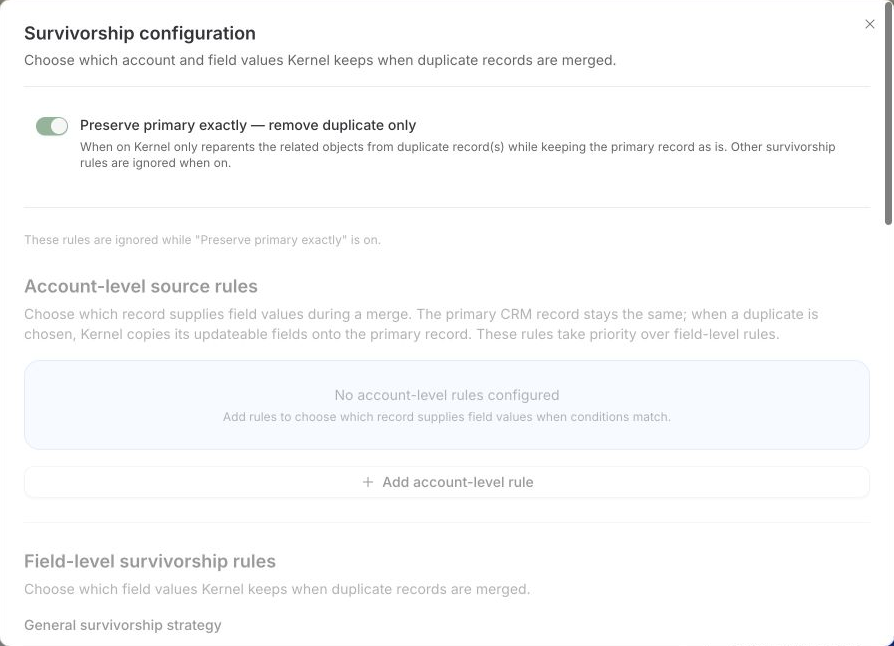
On the Merge accounts page, click the **Rules** gear button to open **Survivorship configuration** and choose which values the primary keeps. Click **Done** to save your changes.
Choose which account and field values the primary keeps.
### Preserve the primary
Turn on **Preserve primary exactly** to skip other survivorship rules and keep the primary's field values. The duplicate records are still merged away. The setting to prevent a circular parent relationship continues to apply.
### Account-level rules
Use an account-level rule when one record should supply the values across the account. Select **Add account-level rule**, optionally give it a name, add conditions for the primary or duplicate, then choose a source:
| Source | What it does |
| -------------------------------------- | ---------------------------------------------------------------------- |
| **Use current primary as source** | Keep the primary's values and skip other field updates for that match. |
| **Use record where … as source** | Choose a record with the field value you specify. |
| **Use record with oldest … as source** | Choose the record with the earliest value in the selected date field. |
| **Use record with newest … as source** | Choose the record with the latest value in the selected date field. |
All conditions in a rule must match. Kernel checks the rules from top to bottom and uses the first matching rule. Move rules up or down to change their order.
Select **Add rule** or **Update rule**, then **Done** to save the configuration. This editor does not support the **Match any** groups used in field filters.
When a duplicate supplies the values, Kernel copies its writable fields onto the primary. **Keep from current primary** lets you preserve selected fields, such as an external identifier or owner. The primary retains its Salesforce ID.
### Field-level defaults
These settings apply when an account-level rule has not already chosen the field values.
| Setting | What it does |
| -------------------------------------------------- | ----------------------------------------------------------------------------------------------------------------------------------- |
| **Fill empty fields from the duplicate record** | Copy a populated value from a duplicate when the primary field is empty. |
| **Keep the newest date when no field rule exists** | Use the latest date for date fields without a custom rule. |
| **Prefer an active owner** | Keep the primary's owner if active; otherwise use an active owner from a duplicate. If neither is active, keep the primary's owner. |
| **Preserve complete addresses** | Keep the more complete address as a whole, instead of combining parts from different records. A tie keeps the primary's address. |
### Custom field logic
Use **Add custom field rule** for a field that needs different treatment from the defaults. The choices depend on the field type.
| Choice | Result |
| ---------------------------------------- | ------------------------------------------------------------------------- |
| **Keep Primary** | Keep the primary's value. |
| **Keep Secondary** | Use a duplicate's available value. |
| **Prefer Empty** | Clear the value. |
| **Highest Number** / **Lowest Number** | Use the largest or smallest number. |
| **Most Recent Date** / **Earliest Date** | Use the latest or earliest date. |
| **Longest Text** / **Shortest Text** | Use the text with the most or fewest characters. |
| **Append Secondary** | Combine text values as a comma-separated list, removing repeated entries. |
Custom field rules take precedence over the field-level defaults. Kernel writes only fields the Salesforce connection can update.
### Owner survivorship rules
Turn on **Owner survivorship rules** to create a reusable set of ownership rules, then select that rule set for the **Owner** field in Custom field logic.
Each rule checks whether the owner of the primary, a duplicate, any record, or all records is an active user, inactive user, integration user, or non-integration user. All conditions in a rule must match. The first matching rule chooses one of these outcomes:
* Keep the primary's owner.
* Use a duplicate's owner.
* Use a non-integration user.
* Use a specific user you select.
[User types](/platform/data-setup/active-users.md) explains how Kernel classifies owners.
### Compound field rules
A compound field contains several related values, such as the street, city, and country in an address. Choose the parent field under **Compound field rules** so all its parts come from the same record.
For example, the primary might have only a billing city and country, while a duplicate has a complete address for a different office. Set **Billing Address** to **Most complete** to take the duplicate's address together. This avoids combining the street from one office with the city or postcode from another.
| Choice | Source record |
| ----------------- | ------------------------------------------------------------------ |
| **Most complete** | The record with the most populated parts. A tie keeps the primary. |
| **Has value** | The primary if it has a value; otherwise a duplicate with a value. |
| **Primary** | The primary account. |
| **Secondary** | A duplicate account. |
A compound field rule takes precedence over **Preserve complete addresses** for that field.
### Parent relationships
**Prevent accounts from becoming their own parent** clears the Parent Account field when the merge would create a circular parent relationship. It stays active even when Preserve primary exactly is on.
## Related records and backups
Open **Rules > Related objects** to choose the related object types to back up, such as contacts and opportunities.
The **Associated objects** setting controls whether Kernel separately deletes related records before merging their account. With **Don't delete associated objects**, Salesforce handles the relationships through its native merge. With either deletion option, the selected related records are removed before the merge instead of moved to the primary.
[Read the related object settings](/platform/data-setup/cleaning-rules.md#related-objects)
## Review and merge
1. Open a merge group and confirm the primary account and the duplicates.
2. Choose **Compare** to review the proposed field values.
3. Check the survivorship and related object settings.
4. Choose **Merge**, review the confirmation, and confirm to queue the action. Choose **Reject** to leave the accounts separate.
5. Check **Actioned** for the result and available backups.
Kernel uses Salesforce's native merge API. Larger groups are processed in batches, with the same primary account retained throughout.