> For the complete documentation index, see [llms.txt](https://docs.kernel.ai/llms.txt). Markdown versions of documentation pages are available by appending `.md` to page URLs; this page is available as [Markdown](https://docs.kernel.ai/platform/data-setup/configuration.md).
# Risk management
Choose which accounts to protect and how to score account risk
Open **Connections > Salesforce > Configure risk** to set safeguards, risk scores, and account owner categories.
[Open Configure risk in Kernel](https://app.kernel.ai/settings/connection/salesforce?tab=configure-risk)
Risk settings help you decide which accounts to include in data actions and which accounts need closer review. They also help Kernel choose the primary account when duplicates are merged.
## Safeguards
A safeguard marks a matching account as **Safeguarded**, regardless of its risk score. The account keeps its calculated score. Safeguarded is a separate status, not a score of 100.
Safeguards exclude accounts from deletion and association by default, and prevent safeguarded duplicates from being merged away. Each action has its own setting to allow safeguarded accounts. A safeguarded account can remain the primary in a merge; its fields still follow the survivorship settings. See [Cleaning rules](/platform/data-setup/cleaning-rules.md) and [Merge accounts](/platform/actioning/merge.md).
### Field rules
Use **Add rule** to choose an account field, an operator, and a value. For example, protect accounts where Account Type equals Customer or Annual Revenue is greater than zero.
With more than one rule, choose how they work together:
| Setting | When the account is protected |
| ------------------- | ----------------------------- |
| **Match any rules** | At least one rule matches. |
| **Match all rules** | Every rule matches. |
The operators depend on the field. Text fields support checks such as Equals, Includes, and Is empty. Number fields support comparisons such as Greater than. Date fields support date comparisons and recent-date ranges. For **In** or **Not in**, separate the values with commas.
### Associated opportunities
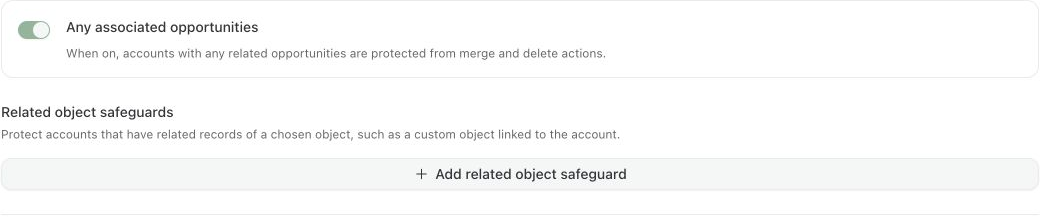
Turn on **Any associated opportunities** to add a safeguard for accounts with an opportunity count greater than zero. This check uses the same **Match any rules** or **Match all rules** setting as the field rules.
The count includes both open and closed opportunities linked to the account.
### Related object safeguards
Use **Add related object safeguard** to protect accounts based on other linked Salesforce records, such as contracts or a custom object.
1. Choose the related object.
2. Choose the field on that object that links it to the account.
3. Choose a count comparison and enter a whole number of zero or more.
For example, **Contract > AccountId > At least > 1** protects an account with one or more linked contracts. The count comparisons are More than, At least, Exactly, At most, and Fewer than.
Each related object safeguard works independently. A match protects the account even when the field rules use **Match all rules** and do not all match.
Add protections for opportunities and other records linked to an account.
## Risk scores and tiers
Kernel adds the points from enabled scoring factors and matching custom rules. Higher scores mean the account has more activity or other reasons to preserve it. Scores can exceed 100.
The default score ranges are:
| Tier | Default score range |
| -------- | ------------------- |
| Very low | 0-25 |
| Low | 26-65 |
| Medium | 66-99 |
| High | 100 or more |
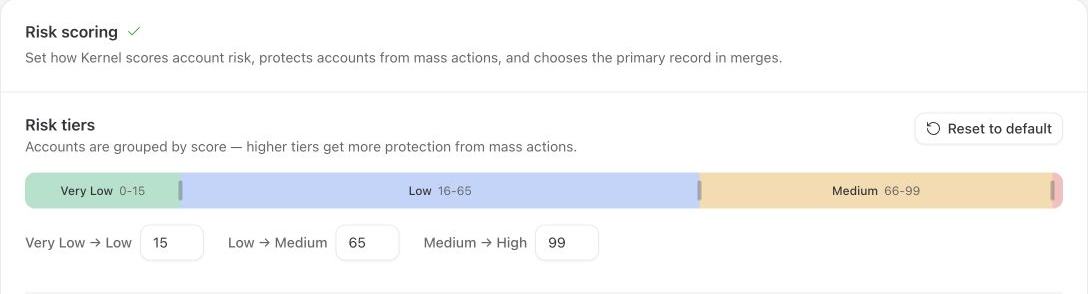
Drag the three boundaries or type new values to change the ranges. Each boundary must be higher than the previous one, from 1 up to 100. **Reset to default** restores the boundaries to 25, 65, and 99. It does not reset scoring factors, custom rules, or safeguards.
The three boundaries are editable. This example uses 15 for the first boundary.
### Scoring factors
Turn each factor on or off. Open **Customize points** below a factor to change the points for each range or owner category.
| Factor | What it measures | Default points |
| -------------------- | ------------------------------------------------------------------------------ | ------------------------------------------------------------------------------------ |
| Recent activity | Time since the account's Salesforce Last Activity Date | 0-30 days: 20; 31-90 days: 12; 91-180 days: 6; older activity or no activity date: 0 |
| Opportunities linked | Number of linked opportunities, including open and closed opportunities | 1: 24; 2: 32; 3 or more: 40 |
| Tasks logged | Number of linked tasks | 1-10: 2; 11-20: 4; 21 or more: 8 |
| Contacts attached | Number of linked contacts | 1-3: 4; 4-9: 8; 10 or more: 16 |
| Owner type | Whether the account owner is active, inactive, an integration user, or unknown | Active: 24; all other categories: 0 |
An account with no opportunities, tasks, or contacts receives zero points for that factor. Turning a factor off removes its contribution from the score. Your saved point values may differ from these defaults.
The recent activity controls have separate point values for 181-365 days, more than a year, and no activity date. All three start at zero.
Use [Active users](/platform/data-setup/active-users.md) to choose the owner field and define each owner category.
### Custom scoring rules
Use **Add rule** under **Custom risk scoring** to give points when an account field meets a condition. Choose the field, operator, value, and weight.
| Weight | Points added for a match |
| --------- | ---------------------------- |
| Minimal | 2 |
| Low | 4 |
| Medium | 8 |
| High | 16 |
| Very High | 24 |
| Custom | A whole number from 0 to 100 |
Each matching rule adds its points. For example, if Account Type equals Customer adds 24 points and Annual Revenue greater than zero adds 16, an account matching both receives 40 extra points.
Use a safeguard when a condition should protect the account outright. Use a scoring rule when it should increase the account's score.
## Save your settings
Click **Save** at the bottom of the page to save all three sections for the selected environment. **Next** opens the next section; it does not save.
If a rule uses a Salesforce field that Kernel does not yet import, saving opens an **Add to Kernel** prompt. Confirm the fields to add them to the import. Their values are pulled on the next run.
Saving changes the configuration. Account scores update when risk scoring next runs. Saving does not merge or delete accounts.
If both Salesforce environments are connected, use **Copy to Sandbox** or **Copy to Production** to copy the saved risk configuration. Save your edits first. Confirming the copy replaces the target environment's safeguards, tier boundaries, scoring factors, custom rules, and user type definitions.
## Use risk in data actions
Filter [data actions](/platform/actioning.md) by risk tier to review accounts in smaller groups. Start with very low-risk accounts, then review the higher tiers separately.
By default, Kernel chooses the account with the highest risk score as the primary account in a duplicate group. [Custom primary selection rules](https://docs.kernel.ai/platform/actioning/merge#choosing-the-primary-record) can take priority over the score. See [Merge accounts](/platform/actioning/merge.md).